Extracting Bluetooth HCI Snoop Logs (btsnoop)
This guide explains how to enable Bluetooth HCI logging on Android devices and extract the resulting btsnoop_hci.log file for analysis.
Prerequisites
Android Device
Before collecting Bluetooth logs, you must enable Developer Options on your Android device.
Note: Some applications, such as banking or security-sensitive apps, may not function while Developer Options are enabled.
Linux Requirements
- Install Android Debug Bridge (ADB)
# Ubuntu / Debian
sudo apt install adb

# Fedora
sudo dnf install android-tools
Install Wireshark
Wireshark is recommended for analyzing the captured Bluetooth traffic.
# Ubuntu / Debian
sudo apt install wireshark

# Fedora
sudo dnf install wireshark
Enable Bluetooth HCI Logging on Android
Enable Developer Options
Open Settings.
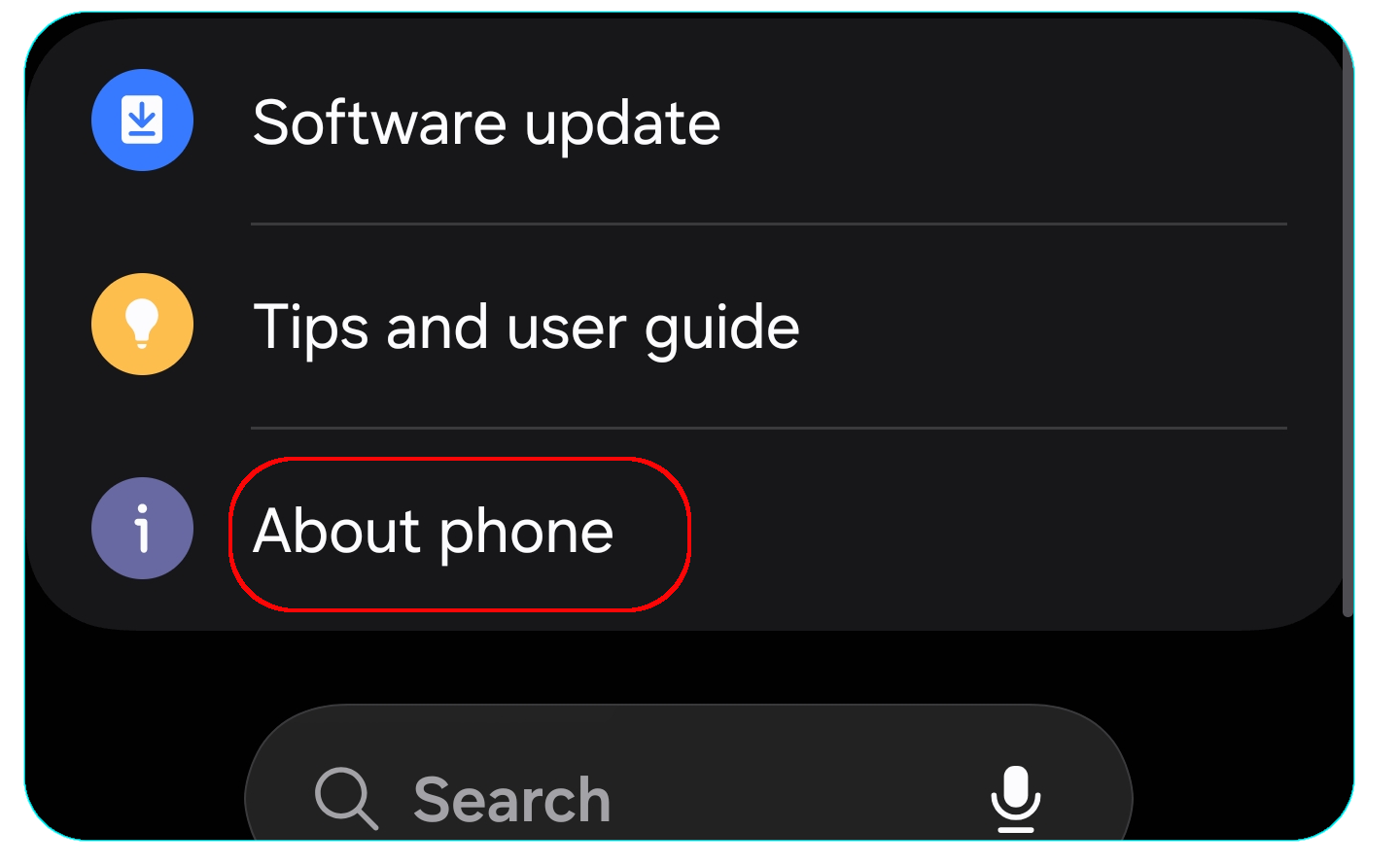
Navigate to About phone → Software information.
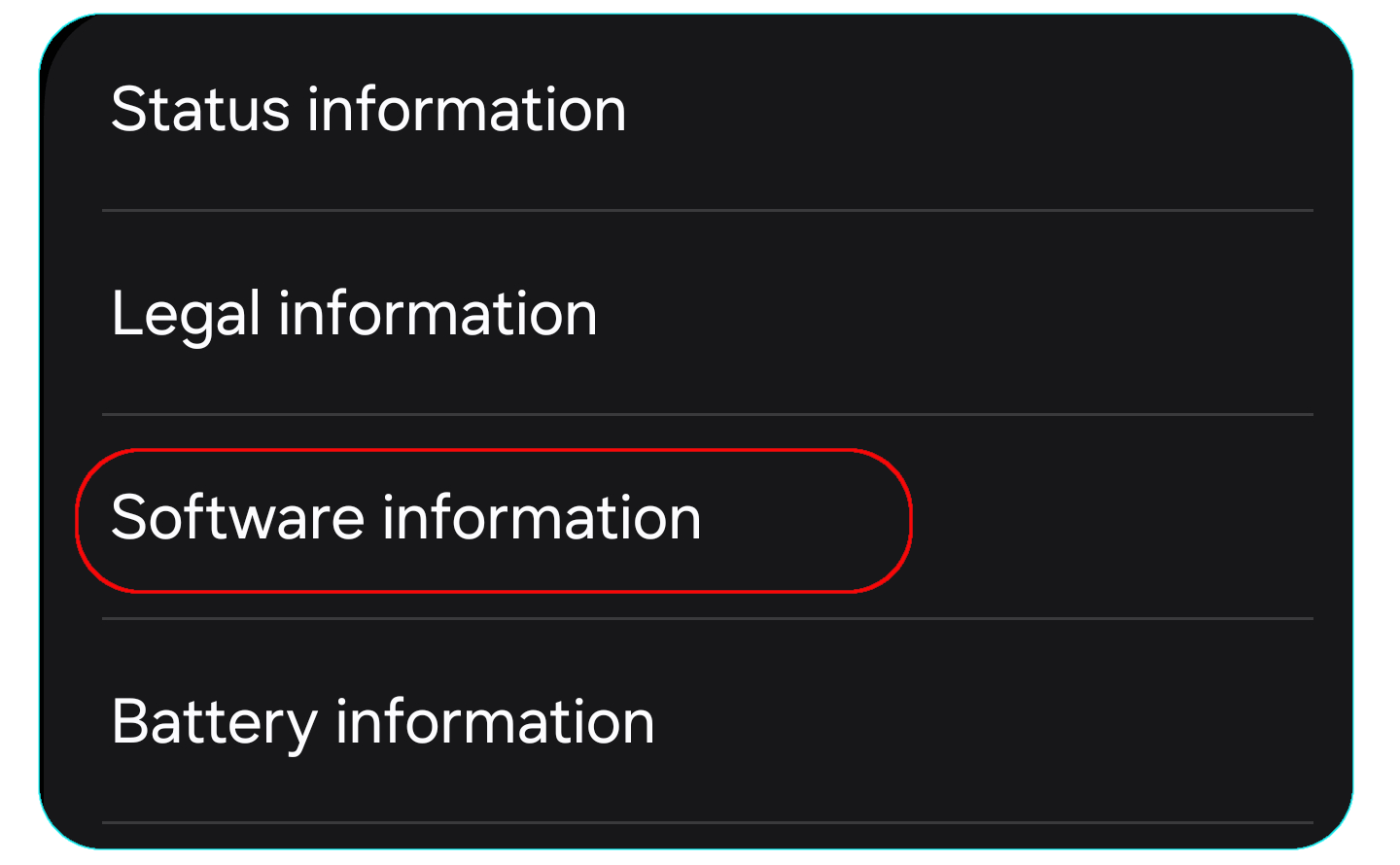
- Locate Build number.
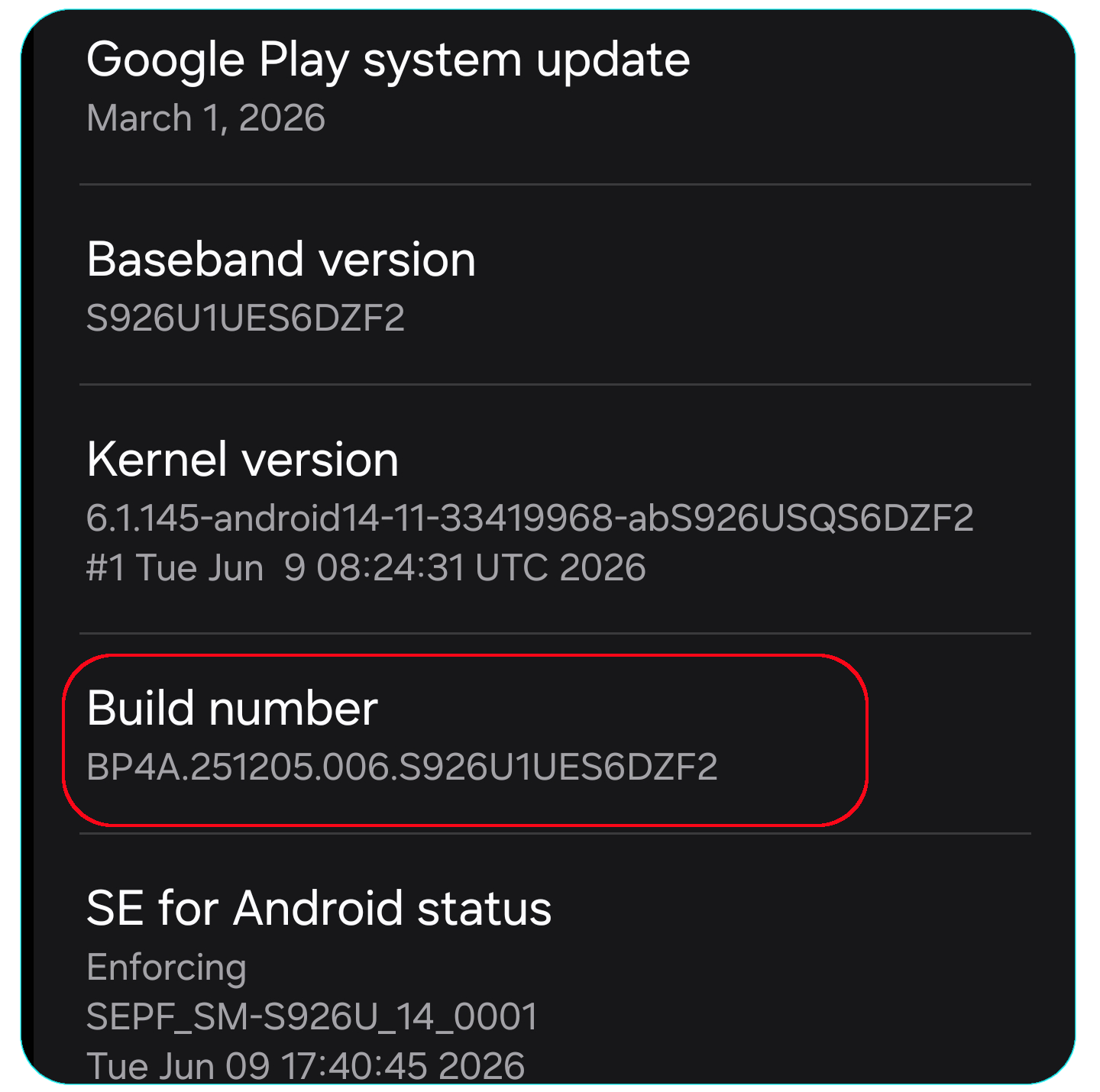
Tap Build number seven times.
If prompted, enter your screen lock PIN, password, or pattern.
Close and reopen the Settings application.
Open Developer options.
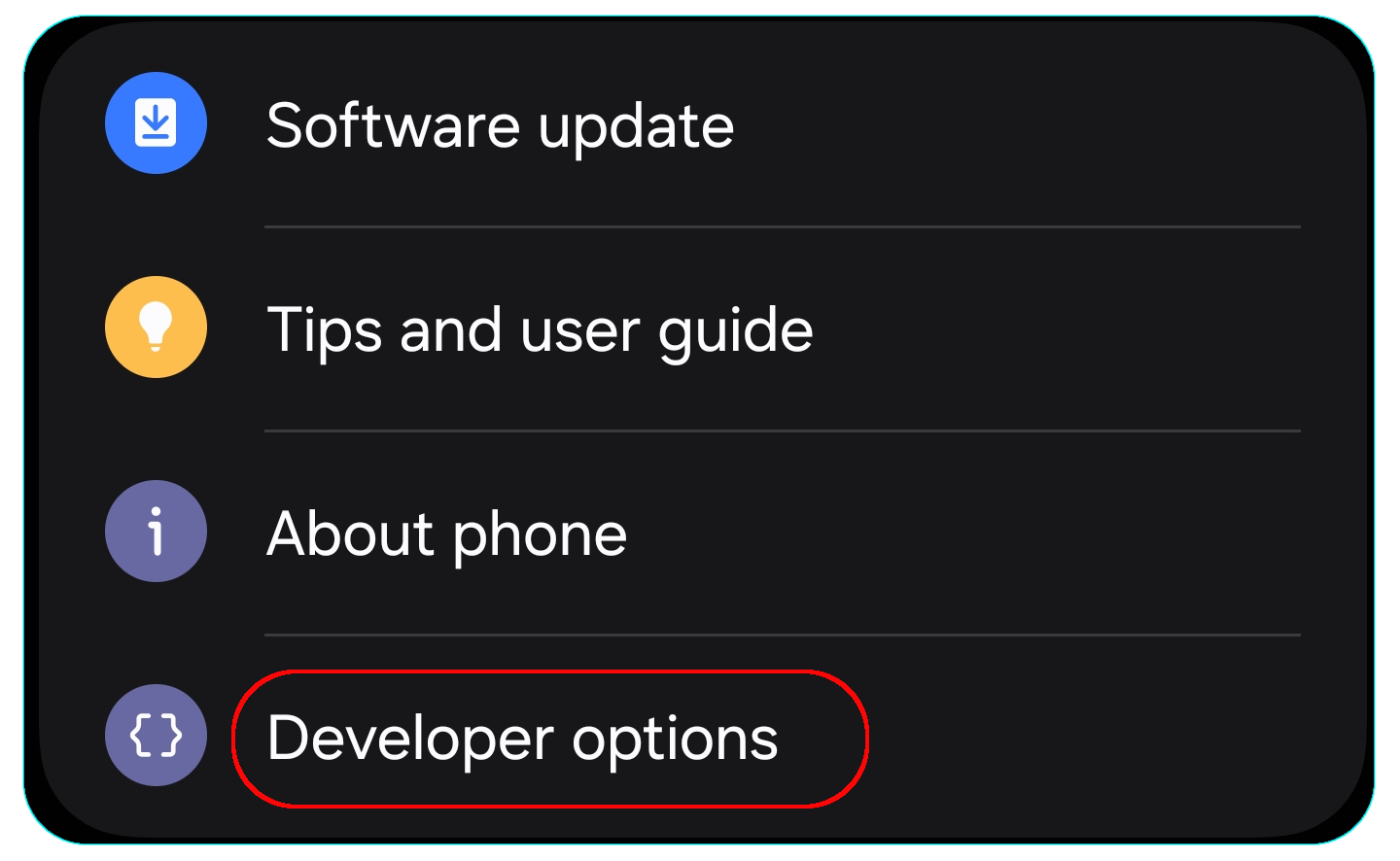
- In Developer options, locate Bluetooth stack log level.
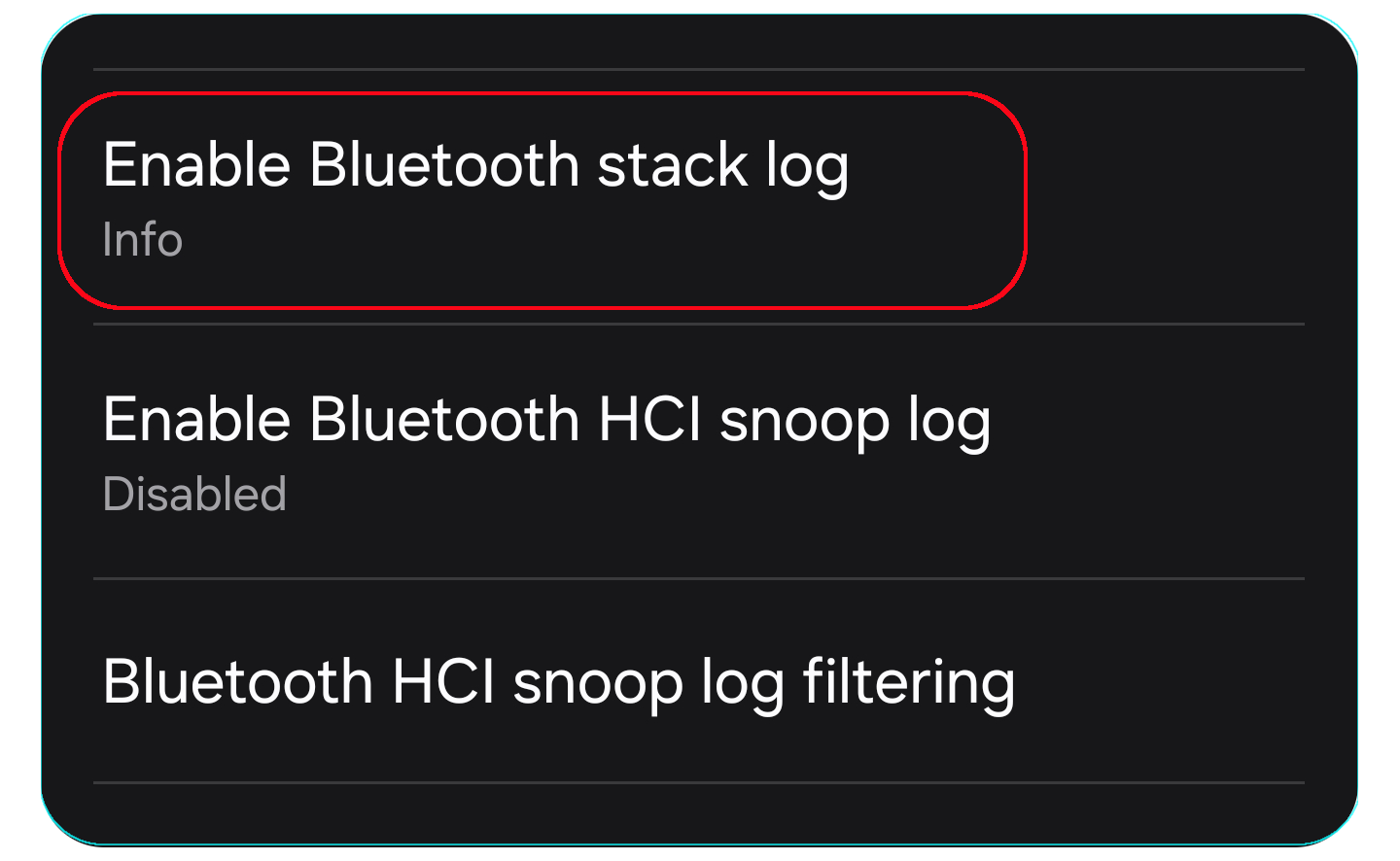
Set the log level to Info.
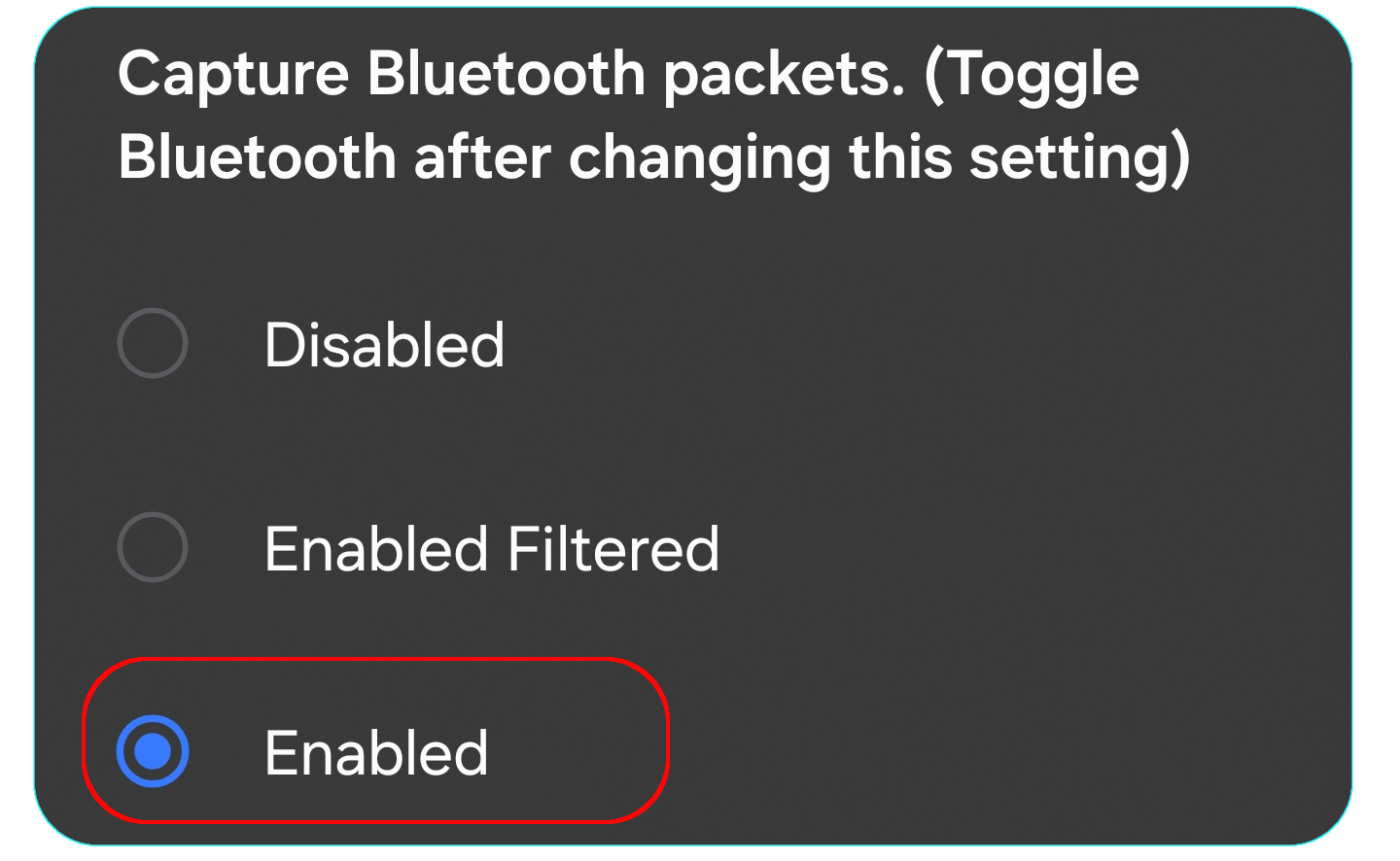
Locate Enable Bluetooth HCI snoop log.
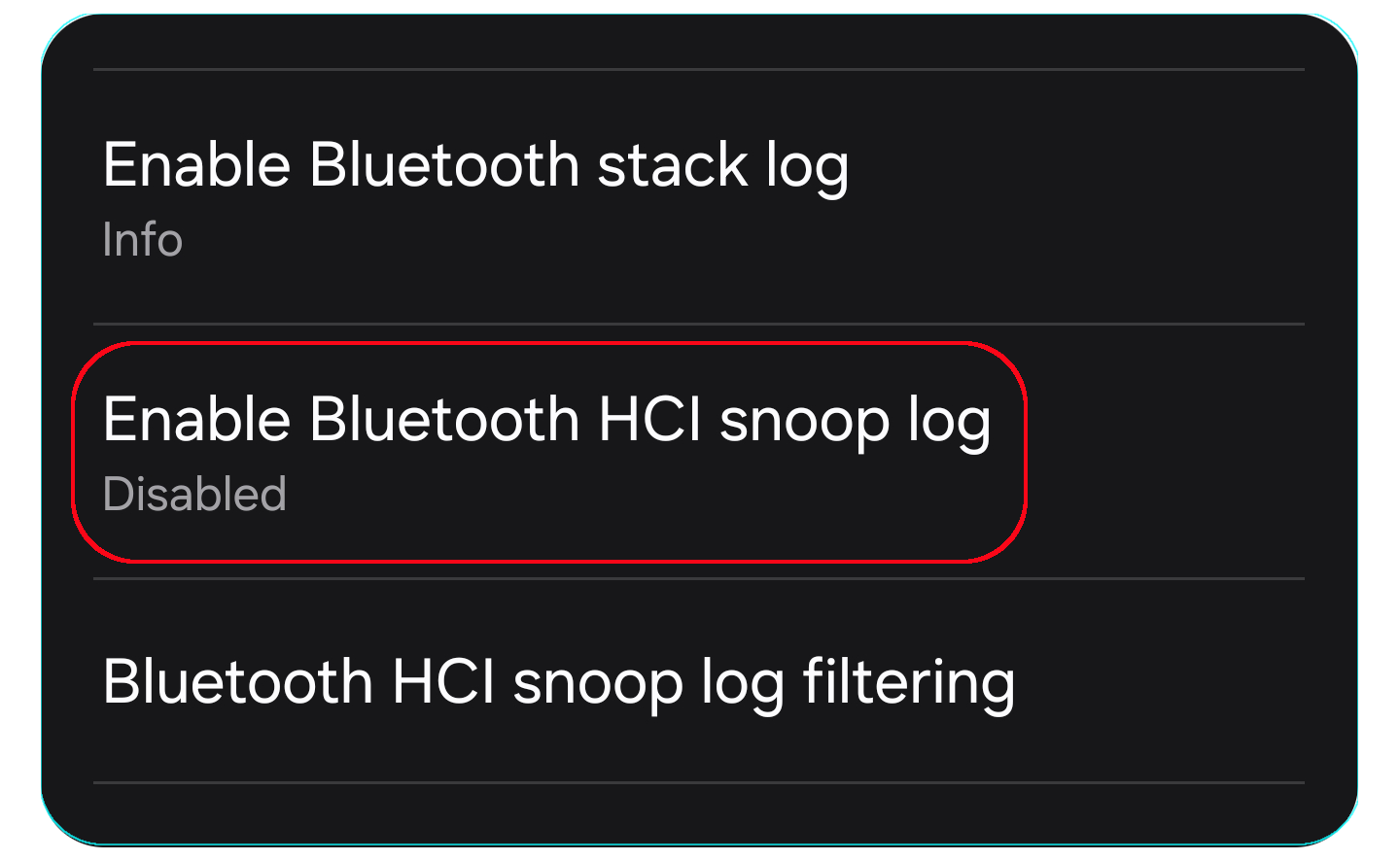
- Set it to Enabled.
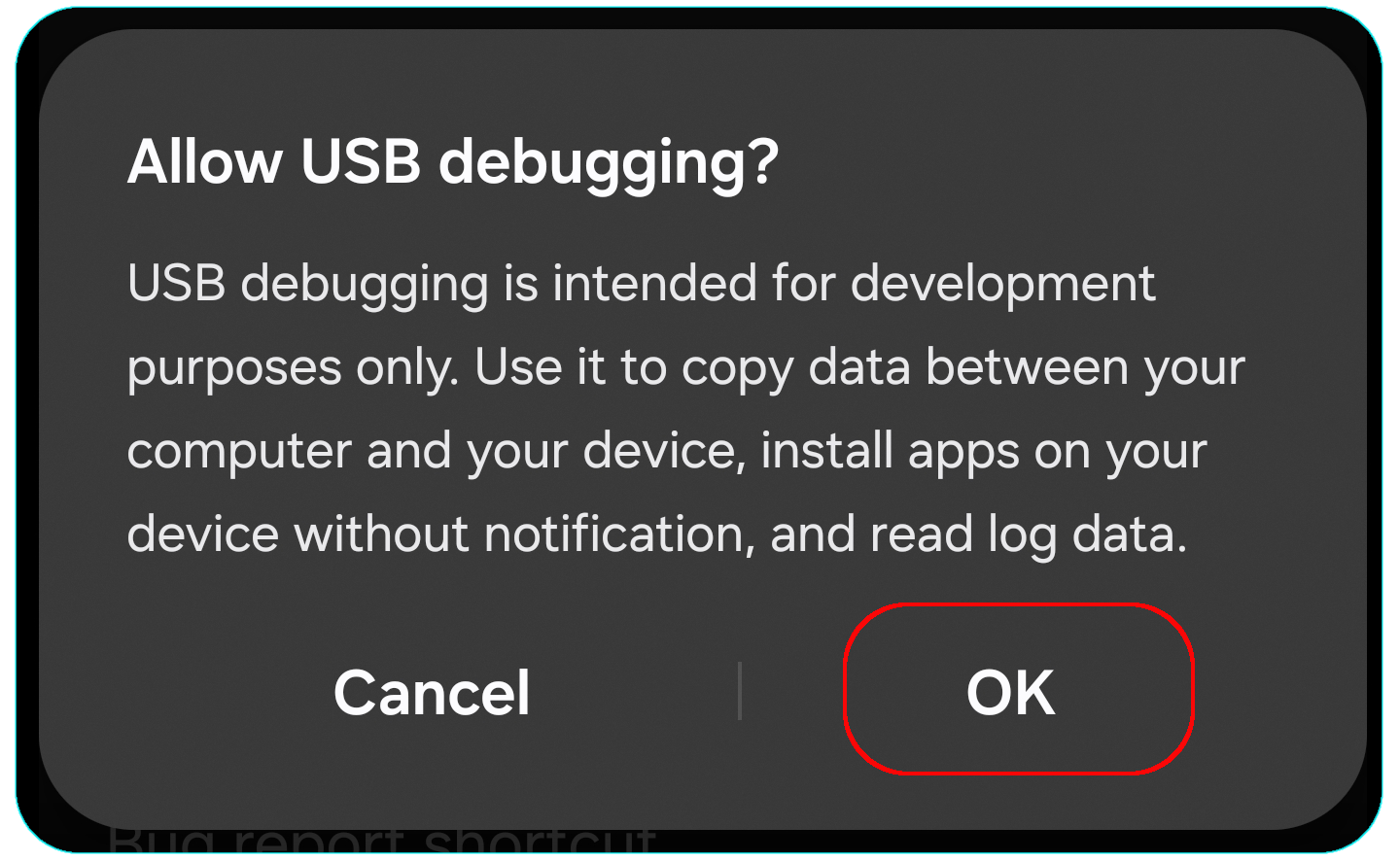
- In Developer options, locate USB debugging.
- Enable USB debugging.
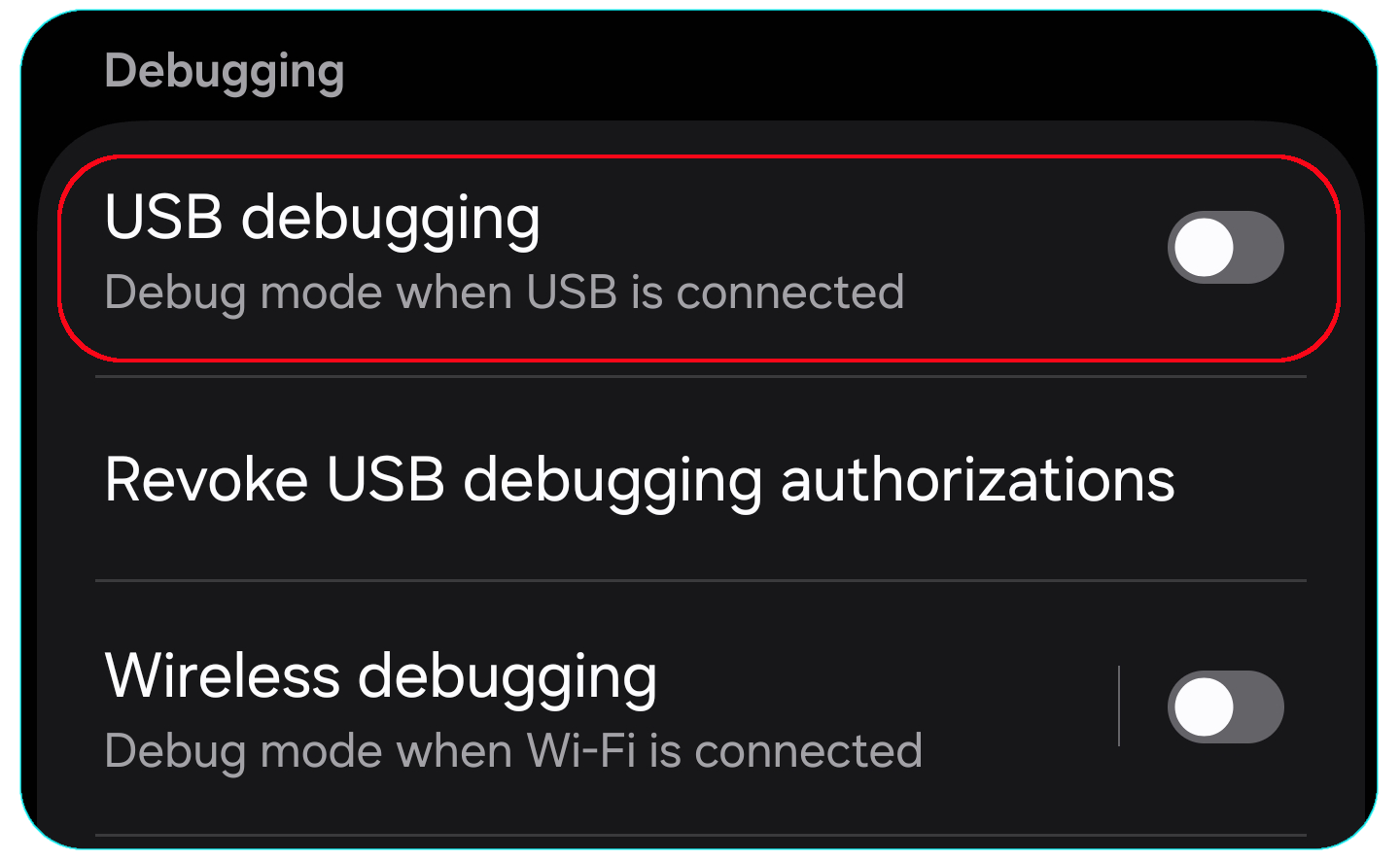
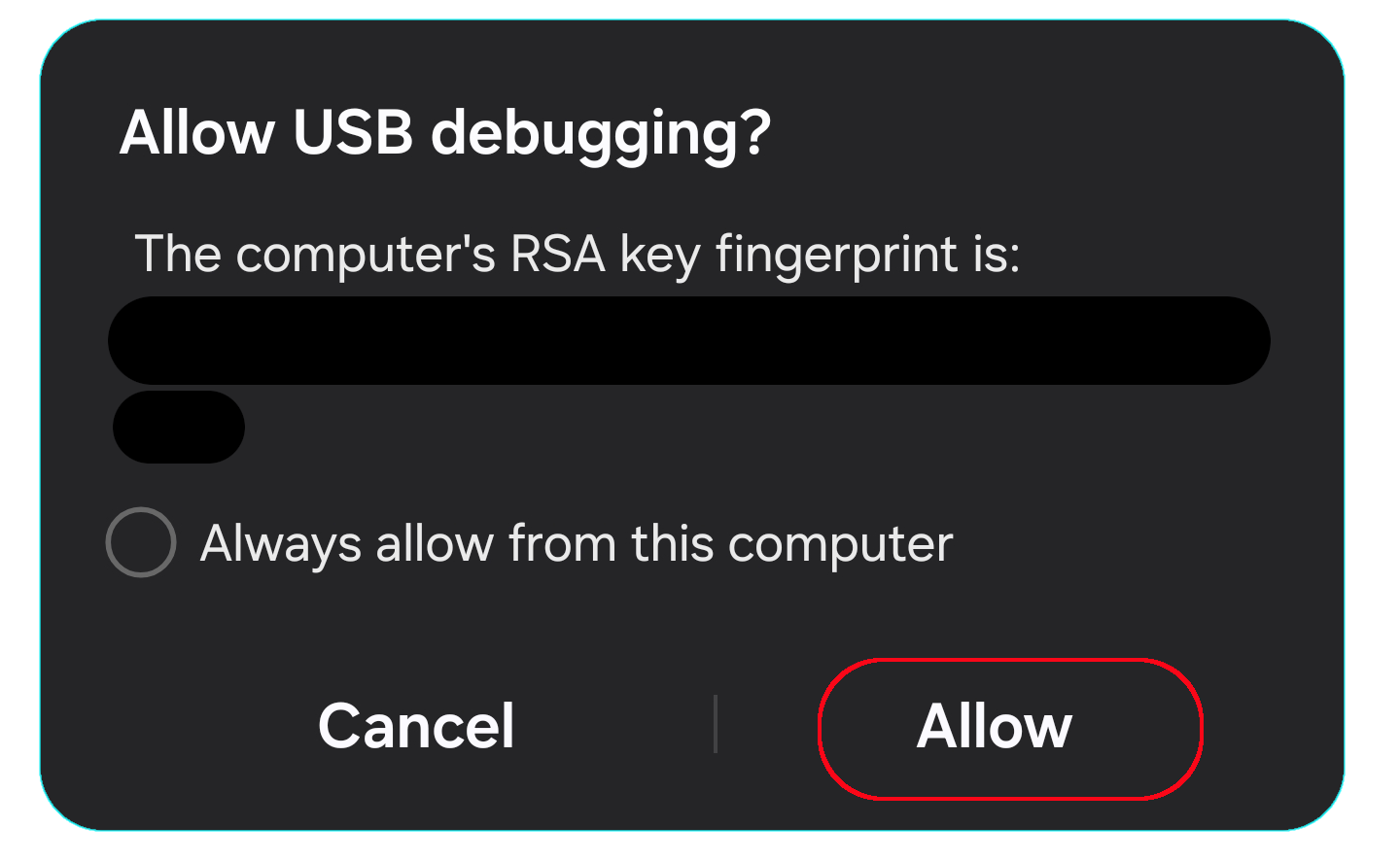
- When prompted with Allow USB debugging, select Allow.
Reboot Android Device
- Reboot the Android device.
- After rebooting, unlock the device.
- Connect the device to your Linux system using a USB data cable.
- If prompted again with Allow USB debugging, select Allow.
- Next step download
bugreportin PC/Laptop.
Download bug-report / Extract btsnoop Log
- Open a terminal/console.
- Generate and download a bug report:
adb bugreport ~/Downloads

- Wait for the bug report collection to complete.
- Navigate to the generated
bugreport-*.zipfile in your Downloads directory. - Extract the ZIP archive.
- Open the extracted directory.
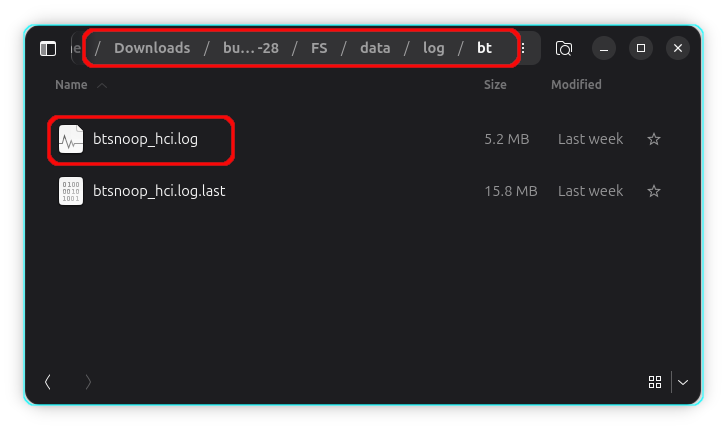
- Navigate to:
FS/data/log/bt/
- Locate the Bluetooth snoop log file:
btsnoop_hci.log
Viewing the Log in Wireshark
Extracting data from btsnoop
Besides packet traffic related to the earbuds, BTSnoop logs may contain other sensitive data, which we do not need. Therefore, we will extract only the packet data exchanged between the phone and the earbuds.
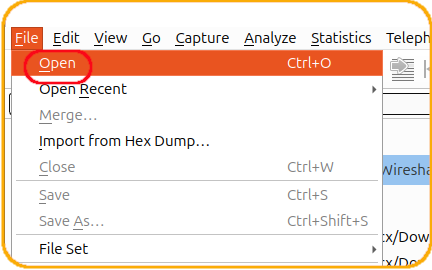
Open wireshark**
Load file using File > Open
- Use a display filter : Bluetooth snoop logs contain a large amount of information, which can be overwhelming to analyze. Using display filters can help narrow the capture to only the packets relevant to your investigation.
Below are a few commonly used RFCOMM filters.
View RFCOMM Packets Sent To or Received From a Specific Device
Replace AA:BB:CC:DD:EE:FF with the Bluetooth MAC address of your earbuds or target device.
btrfcomm && bluetooth.addr == AA:BB:CC:DD:EE:FF
View RFCOMM Packets for a Specific Channel
Replace 12 with the RFCOMM channel you want to inspect.
btrfcomm && btrfcomm.dlci == 12
View RFCOMM Packets That Start With Byte FE
This is useful when the protocol uses a fixed start-of-frame byte.
btrfcomm && data.data[0] == fe
Example with pictures 

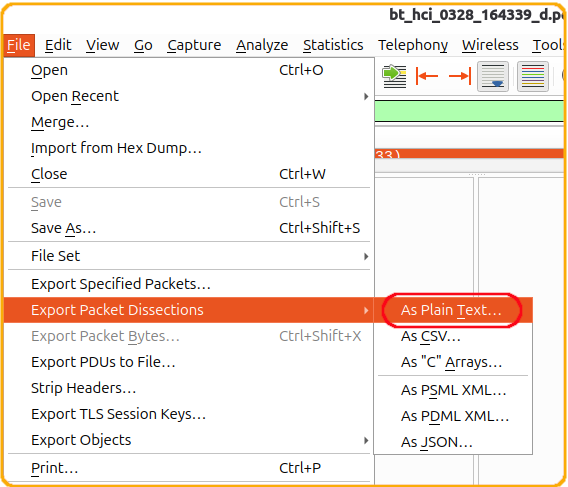
- Export File as Plain Text
Use a display filter to show only RFCOMM packets sent to or received from your earbuds while excluding control packets that do not contain payload data.
Replace AA:BB:CC:DD:EE:FF with the Bluetooth MAC address of your earbuds.
btrfcomm && data.data && bluetooth.addr == AA:BB:CC:DD:EE:FF
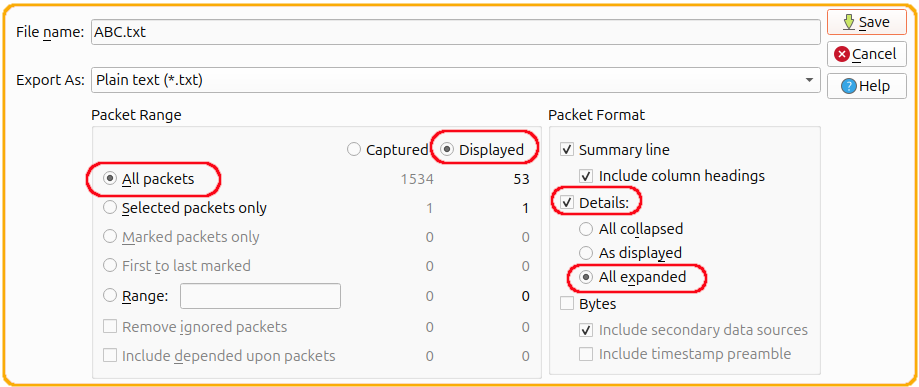
- In Packet Range, Choose >
All PacketsandDisplayed - In Packet Format ,Select >
DetailsandAll Expanded - Save with name and path
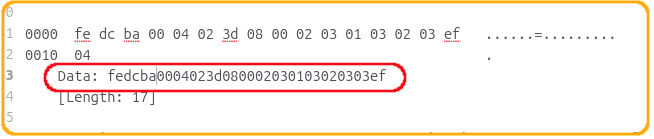
- Verify exported file by opening it in any text editor and check if
Data:field is present
- Run python script
Open the python script extract_data.py in text editor and modify the variables , type path of wireshark exported file in input_file_path, the path and name of output file in output_file_path and the earbuds MAC address in earbuds_mac_address. Earbuds mac address is needed to identify which packet was send to earbuds and recieved from earbuds
input_file_path = "~/Downloads/ABC.txt"     # Path to Wireshark text export
output_file_path = "~/Downloads/XYZ.txt"    # Where parsed results will be saved
earbuds_mac_address = "9c:de:f0:33:f5:cc" # Your earbuds MAC (lowercase recommended)
Note: This script only works with Wireshark set to English, as it uses regular expressions to locate the packet data, source MAC address, and destination MAC address within the exported text.
run the script
python3 extract_data.py